
Configure communication with printers
This section describes the settings used by iWEMC to communicate with printers.

Before you start
Make sure that authentication and the SNMP community are configured on the printers.
Basic settings
Select Devices > Device communication settings
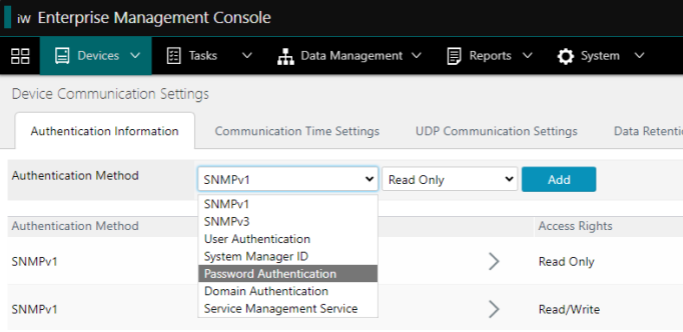
Device Communication Settings
Define the necessary settings:
User Authentication |
|
|---|---|
Password Authentication |
If there are printers with different passwords, you must add all the passwords. The tool distributes them automatically. |
SNMPv1 | Fill in the name of the SNMPv1 community defined on the printer If the device is configured to use a dedicated community, select Use a dedicated community. |
SNMPv3 | Fill in the SNMPv3 username, authentication password, encryption password and context name defined on the printer |
Service Management Service |
|

Configure the task of checking printer settings
Select Tasks > Built-in tasks
Select Check Device Setting Values Management Functionality
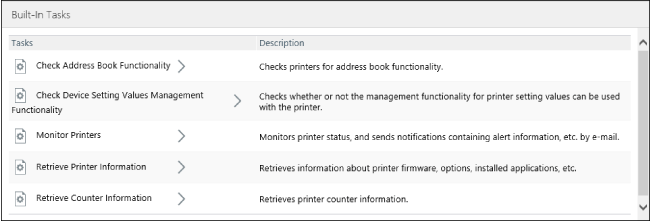
Built-In Tasks
Click on Execute now
Access the task result
Select Tasks > History
In the filter, select All tasks
Check the status of the task

History
Find out more about the problems in the Troubleshooting section of the tool's official manual.