
Export the settings
This section describes the procedure for configuring the sample printer to run our solution. We will also teach you how to export the configuration for distribution to the other printers.
Configuring the sample printer
To distribute the settings, you need to configure the printer that will serve as a sample for the others.
Configuring USB device input
On the device's web page, log in as the Administrator user
Click on Settings/Registration
In Preferences > External Interface
Select Use MEAP Driver for USB Input Device
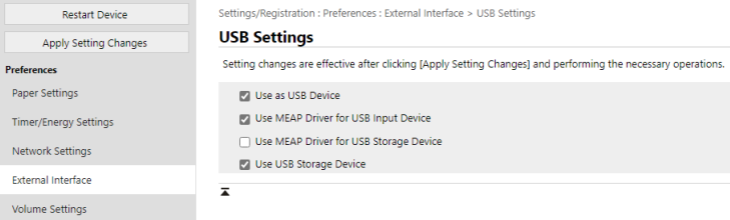
Use MEAP Driver for USB Input Device
Configure the use of Scan to my folder
On the device's web page, log in as the Administrator user
Click on Settings/Registration
In Function Settings > Send
Select Use Authentication Information of Each User
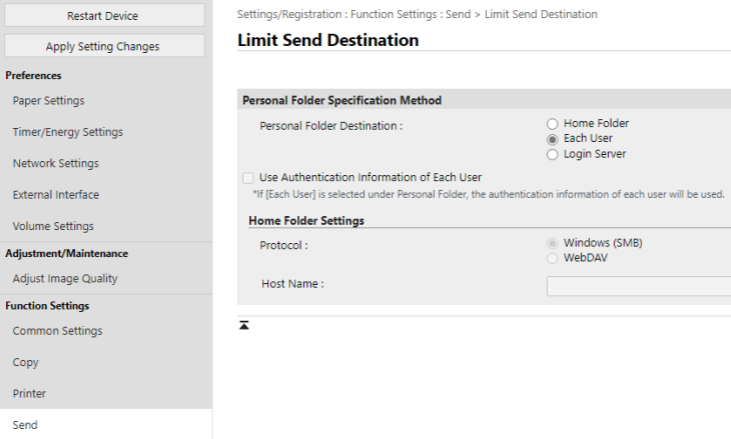
Use Authentication Information of Each User
Configuring the blocking of native functions
On the device's web page, log in as the Administrator user
Click on Settings/Registration
In Management Settings > License/Other
Select Use ACCESS MANAGEMENT SYSTEM
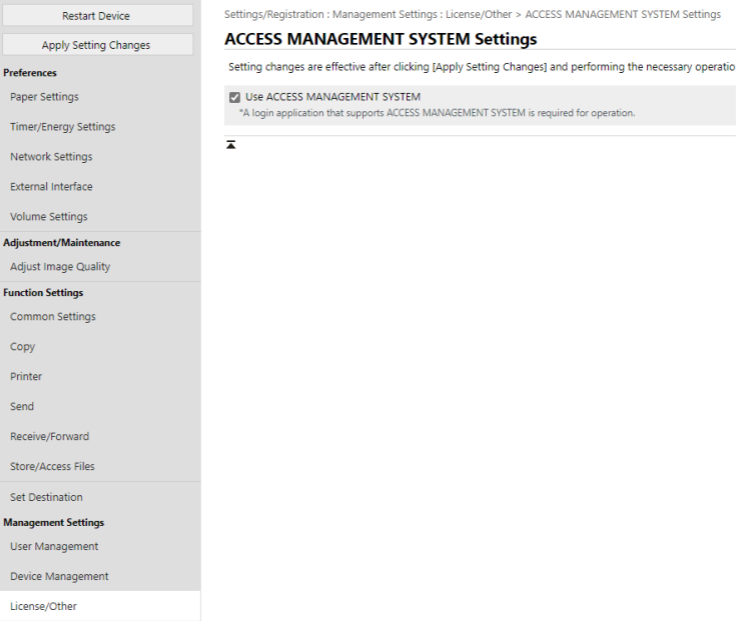
Use ACCESS MANAGEMENT SYSTEM
Export configuration
On the device's web page, log in as the Administrator user
Click on Settings/Registration
In Management Settings > Data Management
Select All and set a password
Click on the Start Exporting button

During the process, the printer will reboot. This export may take a few minutes.
When finished, click on Start Downloading
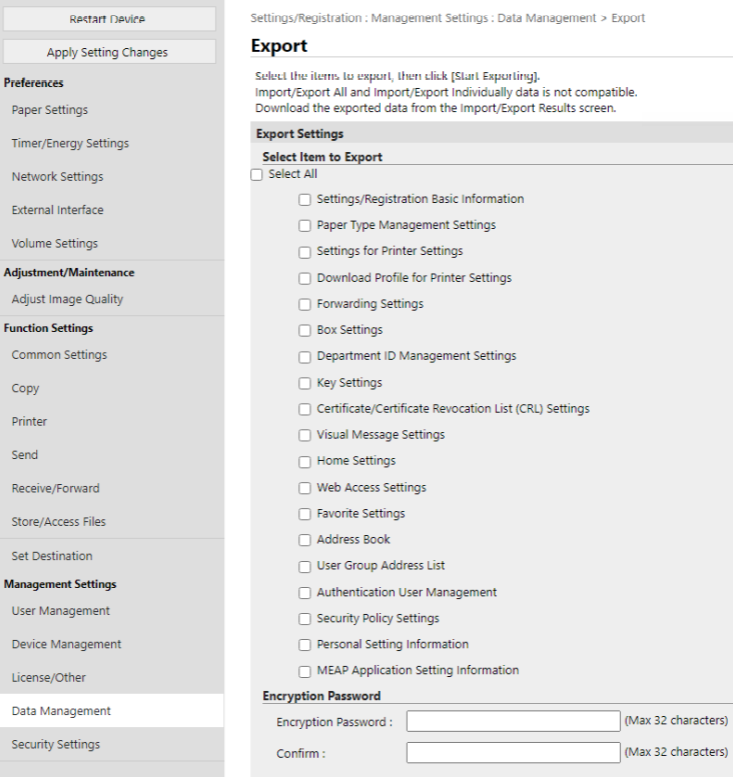
Export