
The installation can be performed through a Group Policy object (GPO) silently (without user interaction), and it will be done through a startup script to be configured following the guidelines listed below.
Copy file: In this step, the file must be copied to a shared folder.
The file must be copied to a shared folder on the network, with read permission for all computers from which the package will be distributed.
Copy the NDD Print Agent Auditing installer to the folder.
Copy the Auditing.ini file: This file has the settings to be used in the silent installation, to check the necessary steps to create this file, navigate to the topic Configure Auditing.ini.
Configure the script: In this step, the script should be edited and executed by the GPO.
The steps presented below should be followed when there is a need to install, update or remove the NDD Print Agent Auditing by GPO.
Create a file from a text editor and save it with the extension ".bat";
Copy the following example and paste it into the file;
Substitute information: \\server\sharing\agent\nddPrintAuditingSetup_5.0.7.exe. Note that the quotation marks must remain;
Save the file;
Copy the ".bat" file to the shared directory where the stations where the package will be applied have access.
setlocal
REM =======================================
REM Set local variables with the installers folder
REM =======================================
set AppPath="\\server\sharing\agent\nddPrintAuditingSetup_5.0.7.exe"
REM ==================================
REM Run the package
REM ==================================
start /wait "" %AppPath% %1
Endlocal
Create the policy (GPO): In this step, the policy (GPO) should be created and configured.
After configuring the scripts, the GPO that will execute them must be created. To add a GPO that runs the script, in the Active Directory the security policy configuration must be accessed, and in the Windows configuration policies, insert a new startup script.
Select the OU or Group, click the Action menu, select the option Create a GPO in this domain, and Link it here...;
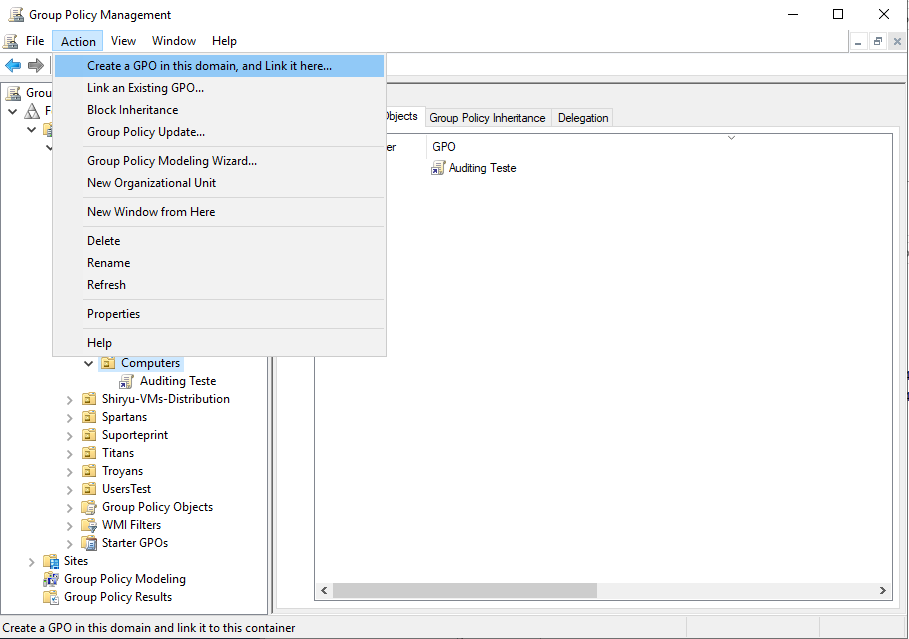
Enter the new policy name;
Select the registered policy, and with the right button select the Edit option;
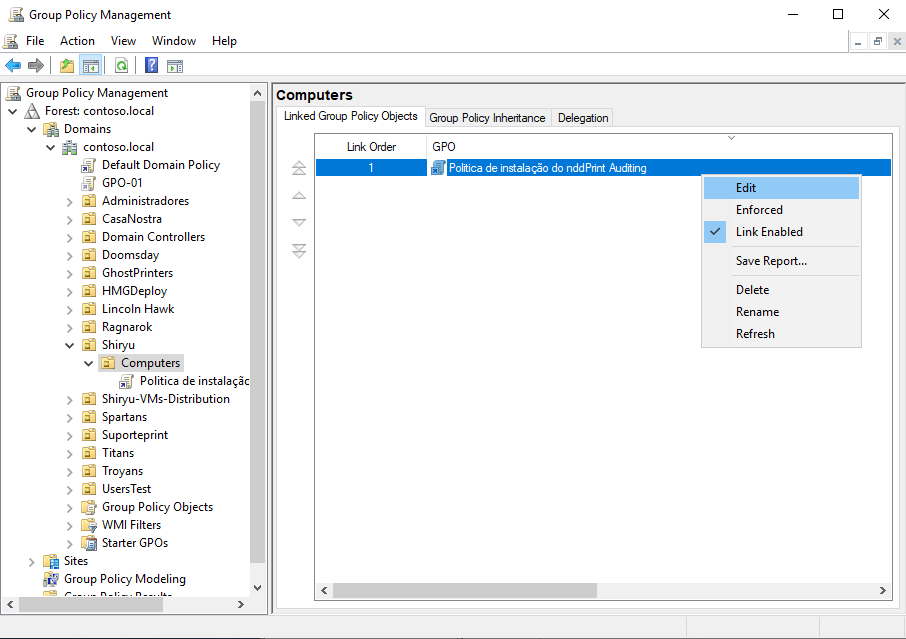
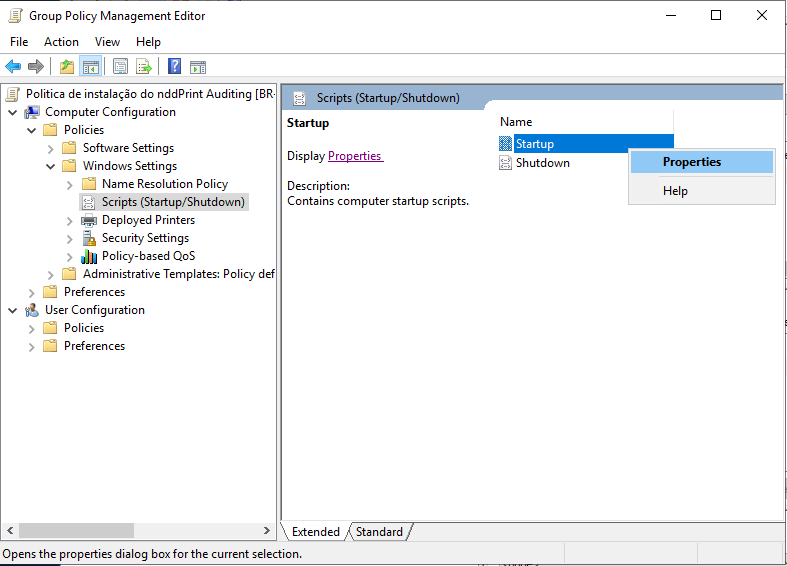
In the policy editor, go to: Computer Configuration > Policies > Windows Settings > Scripts;
Select the Startup option, with the right button clik Properties;
Click Add, in the startup properties;
Locate and select the script that will be run;
Click OK on the script addition interface;
Click OK in the Startup properties.
Update
To update, follow the Configure scripts steps and generate a new script by adding the directories containing the new installers, then follow the Create policy (GPO) steps to add the new script to run on the next startup.
Removal
To perform the removal, follow the Configure scripts steps and the Create policy (GPO) steps, adding the parameter "/U" in the parameter field when selecting the script:
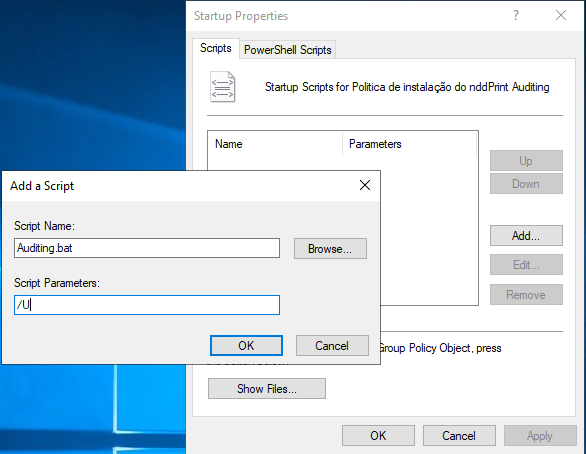
Removals will be applied during the next system boot.
NDD Print Agent Auditing is not compatible with Kyocera device drivers