
Configure digital certificate
Next, we will describe the process of configuring the HTTPS protocol in Internet Information Services (IIS) for the NDD Print MF Sharp. This configuration ensures that all connections between modules are made securely.
Prerequisites
Before starting the configuration, check the following requirements:
Have IIS Server installed and running
Have a valid SSL Certificate (it can be self-signed for testing purposes or purchased from a trusted certificate authority)
Have a user with administrative access to the server where IIS is installed.
Step by Step
Generate or Acquire an SSL Certificate
Access the IIS server.
Open the IIS Manager (Internet Information Services Manager)
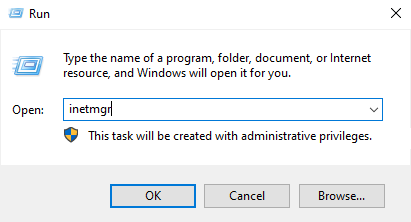
In the left pane, click on the server name.
In the Resource Centre pane, click on Server Certificates.
Choose one of the options:
Self-signed certificate: In the Actions area, click Create Self-Signed Certificate, enter a name, and complete the process.
Certificate from a certification authority (CA): In the Actions area, click Create Certificate Request, fill in the requested information, and send it to a CA.
To create a certificate:
Open CMD as an administrator.
Run the command: cd C:\Program Files\NDDigital\nddPrint\MF\Sharp\Certificate
Run the command: mkcert -pkcs12 NDDIGITAL-certificate ::1 127.0.0.1 localhost
The certificate will be created in the C:\Program Files\NDDigital\nddPrint\MF\Sharp\Certificate directory.
To install the certificate, rename NDDIGITAL-certificate+3.p12 to NDDIGITAL-certificate+3.pfx.
Double-click the certificate.
Select Local Machine.
Click Next until you reach the password section.
If no settings have been changed, the default password will be changeit.
After entering the password, click Next until the installation is complete.
For an existing certificate, click Import and select the PFX file.
2. Configure HTTPS on Sharp NDD Print MF Websites
In IIS Manager, in the left pane, expand the website tree and locate Default Web Site under ServerName\Sites.
Right-click on Default Web Site and select Edit Bindings...
In the Site Bindings window, click the Add... button.
Configure the following parameters:
Type: select https.
IP Address: select the server IP (or All Unassigned).
Port: set to 443.
SSL Certificate: select the previously imported or created certificate.
Click OK to save the configuration and close the window./page
3. Test the Configuration
Access directly via HTTPS and verify that the certificate is recognised correctly.
If an error occurs, review the IIS logs and firewall settings.